Friday, February 29, 2008

25 Incredible Skins, Resources & Tools for the Gmail Power User

Gmail is one of those rare things unanimously loved by everyday web users and tech-heads alike. The possibilities are endless. It can be anything from a simple email client to your central nervous system on the web. How far you take it is up to you.

Each day seems to produce a new hack, tool or tip for better Gmail use. In this post, I want to highlight only the very best, hand-picked from hundreds of resources. This is not another resource list you’ll bookmark and never look at again. These tips, monster resources and tools will change the way you use Gmail.


Best Gmail skins

1. Super Clean skin — probably the most popular Gmail skin, Super Clean replaces the standard interface with a minimalist white and sky-blue version. Perfect for the budding Zen-master.
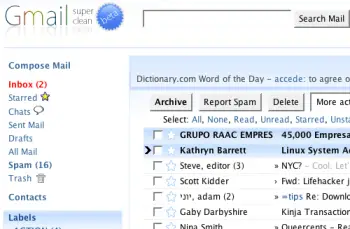
gmailsuperclean.png

2. Air skin — makes subtle changes to the visual interface, adding clean lines, a cloudy color combo and changes the primary font. The perfect solution for users looking for a fresh look without any radical changes.
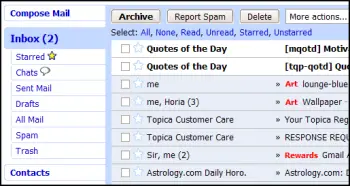
gmailair.png

3. Mac skin — a Mac-inspired Gmail skin to match the Mac you’re checking your mail on! Adds a Mac-style menu and color-scheme to your Gmail account.
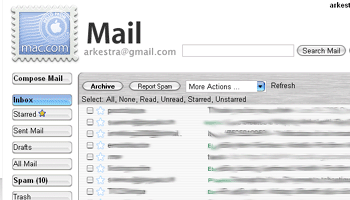
gmailmac1.gif

4. Fe Mail skin — a well-crafted and very pink Gmail skin.
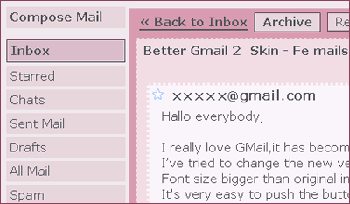
femails.gif

5. Dark Gmail skin — almost the complete opposite to the last link, this skin is one for the dark and brooding Gmail user.

darkskin.png

6. Silverstar skin — a popular minimalist gray theme.

simplicity.gif

7. Brushed skin — a gray and maroon theme with nifty gradients thrown into the mix.

brushed.png

Best Gmail resources

8. The Gmail Shortcuts Cheat Sheet — a comprehensive printable cheat sheet of useful shortcuts for Gmail. Print it and stick it to your desk: these shortcuts are worth memorizing. Did you know pressing ‘Tab’ and ‘Enter’ will send the email you’ve composed?

9. Gmail Craze: 40+ Tools and Hacks for Gmail — a frequently updated post from MakeUseOf featuring essential Firefox extensions, Greasemonkey Scripts, Desktop Apps, Web Tools, tips and hacks.

10. 55 Gmail tips — this website is dedicated to providing detailed Gmail tips. It covers everything from excluding chat from search results to importing Hotmail contacts.

11. Hack Attack: Become a Gmail Master — this fantastic guide from Lifehacker introduces Gmail’s most powerful capabilities in a way that’s easy to follow. It will help take anyone only familiar with Gmail’s basic functions to the next level.

12. Use Gmail as Your Universal Email Account — got too many email addresses to keep track of? Forward them all to Gmail and deal with your incoming mail from one central location.

13. Ultimate Gmail Collection: Over 80 Tools and Tips — a monster list of extensions, scripts, apps, notifiers, how-tos and shortcuts for the serious Gmail user.

14. Turn Gmail Into Your Personal Nerve Center — influential technology blogger Steve Rubel shares his essential Gmail life hacks, including:

  • How to turn Gmail into a massive personal database
  • How to get real-time news updates in Gmail
  • How to automatically store your bookmarks in Gmail
  • How to manage Calendar and To-Dos in Gmail
  • How to blog from Gmail

15. 1 Awesome Gmail Tip You Didn’t Know About. Seriously. — this easy tutorial explains how you can customize your Gmail address to serve different purposes.

16. Gmail Toolbox: 60+ Tools for Gmail — Mashable.com works its magic with a huge compendium of Gmail tools. It includes all the extensions you know and love in addition to some (previously) undiscovered gems.

17. Access Gmail When It’s Blocked at Work or School — Engtech provides five strategies you can use to check your Gmail anywhere, even when the I.T. department doesn’t want you to.

18. Mark Spam Messages as Read — this simple filters hack allows you to prevent your unread spam count showing in the main display. Best of all, it will still alert you to items that have been incorrectly marked as spam.

19. Gmail Tips and Tricks: Monster Roundup — Lifehacker’s big roundup of its favorite Gmail downloads, hacks and articles.

Best Gmail tools

20. Gmail Drive — this tool puts Gmail’s extensive storage capacity to use, adding a new drive to your computer which can be accessed via Windows Explorer. You can create folders and drag and drop files within the drive. If you’ve got unused space in your Gmail account, why not add some more space to your hard drive?

21. GTD Inbox — the email solution for productivity nuts, GTD Inbox is a Firefox extension designed to merge the “Getting Things Done” productivity method with Gmail. It transforms Gmail into a productivity hub you can use to set and manage tasks or to-dos. The interface is very subtle and won’t interrupt the look and feel of Gmail as you know it.

22. Better Gmail 2 — this simple and elegant Firefox extension, authored by Gina Trapani, makes several improvements to Gmail’s core functionality, allowing you to hide the ever-annoying Spam count, compose Mailto links in Gmail and view your storage quota as a useful graph. If you’re still using the old version of Gmail, you’ll need to download the original Better Gmail extension.

23. Gmail Music — this nifty little web-based GUI app allows you to store MP3 files in your Gmail account and play them on any computer.

24. Dragdropupload — a Firefox extension that does away with the pesky ‘Browse’ interface. It enables drag and drop email attachments to make the process quick and painless.

25. Gmail Skins — a Firefox extension to customize the color of your Gmail inbox.

Suggest your favorite skins, resources and tools in the comments section!


Posted by Deepak at 8:13 AM | 0 comments  
Labels:

Google Email Uploader

The Google Email Uploader is a desktop utility for Microsoft Windows that uploads email from other desktop email programs (like Microsoft Outlook) into your Google Apps mailbox. The Email Uploader preserves information such as sent dates and sender/recipient data, as well as the folder structure used by the other email program. The Google Email Uploader requires a Google Apps Premier, Education, or Partner Edition account.

http://code.google.com/p/google-email-uploader/

Posted by Deepak at 8:08 AM | 0 comments  
Labels:
Wednesday, February 27, 2008

Stage6 to shut down

Stage6 is shutting down. That’s the announcement on the main page of the video portal that was posted today. Let me fill you in if you are amongst the many that have never heard of that video portal before. Stage6 is directly connected to the developers of the Divx codec, a high definition video portal.

The videos on Stage6 have a far better quality than everything that you can find at Youtube for instance. It became apparently that popular that the company did not have the resources to continue the portal on their own. Unfortunately they did not succeed in finding a buyer for the portal which left them only with the option to shut it down completely.

It’s a sad thing to see this portal being shut down. My advice, head over there now and watch / download all the nice stuff that you can find there. Lots of nice documentaries, music videos in high quality and the like.

It’s really worth it. The portal is stated to shut down on February 29th 2008.

Posted by Deepak at 8:59 AM | 0 comments  
Tuesday, February 26, 2008

3 Excellent Sites to Get Free Document Templates

Free Document Templates Once in a while we all need some kind of document, it may be a business plan presentation, rental contract, non-disclosure agreement, or even a name change Once in a while we all need some kind of document, it may be a business plan presentation, rental contract, non-disclosure agreement, or even a name change request form. In most cases, Googling the document may ultimately get you what you need, but it’s both time consuming and frustrating. Below, I want to go through 3 excellent resources that can provide you with any professional document or form template for free.

(1) Docstoc - Extremely useful community-powered service for sharing all kinds of business document templates. If you need a professional document, Docstoc is the first place to check out. Whether it’s a legal document, a business form or whatever is out there. Docstoc was launched just recently but already counts over 65.000 user-submitted documents, covering legal, business, financial, technology, and education areas.

Docstoc - Free Document Templates

For all Docstoc features and video demo check out Docstoc profile here.

(2) Gazhoo - Unlike Docstoc, Gazhoo is a marketplace for legal, financial and business documents, case studies and research papers. Mainly it’s a place to buy and sell professional documents. However, with the exception of few scarce document types (i.e. market research papers) most of the listed documents are free. So, it’s a pretty good resource as well.

Gazhoo - Free Professional Documents

(3) Scribd - Scribd has the biggest document collection, but it’s not focused on professional documents alone. It’s more like a virtual document library, where anyone can freely upload and share any kind of text documents (jokes, facts, stories, legal, presentations, etc.). Although, there is a good deal of useless stuff, it still has lots of legal forms and document templates. Read more: Scribd - Online Document Sharing.

Scribd - Online Document Library

Are you aware of any other similar websites? Share them in comments ;-)

10 Tips to Change Yourself From a Dedicated Couch-Potato to a Gym Enthusiast

Do you have problems in exercising or sticking to a routine? Well, personally thats one of my major problems is sticking to a routine of exercising. This is a pretty useful article..helps us not to procrastinate.


Exercise helps keep you happy and vital. Studies show that folks who exercise are healthier, cheerier, more energetic, think more clearly, sleep better, and have delayed onset of dementia. What’s more, they get relief from anxiety and mild depression—comparable to medication and therapy.

But of course, no one really disputes the benefit of exercise. The trick is actually DOING IT.

My own favorite activity is reading in bed—preferably, while snacking. It took me a while, but I’ve managed to get myself into the habit of exercising regularly.

These ten strategies helped me stick to my routine:

1. Always exercise on Monday. Starting the week on the right foot makes it easier to stick to your plan.

2. Never skip exercising for two days in a row. You can skip a day, but the next day, you must exercise no matter how inconvenient. This rule dramatically increased the number of times I exercise over the course of a month.

3. Remember, exercise GIVES energy. If you feel too tired to exercise, remember that exercise boosts energy. It took me a long time to notice that I’d drag myself to the gym, work out for forty minutes, and leave feeling far more energetic than when I went in.

4. Any work-out “counts.” Give yourself credit for the least effort. My father, a runner, always said that all he had to do was put on his running shoes and close the door behind him. Why does this work? Because if I know I can quit after five minutes, I get started—and once I start, I usually follow through with my usual routine. Getting out the door is by FAR the toughest part.

5. You don’t have to shower. One problem—mostly for women—is that taking a shower can take too much time. Look for exercise like strength-training, yoga, or walking, that don’t make you sweaty.

6. Throw money at the problem. Spend more to go to a more convenient gym, or to get an iPod, or to work with a trainer. Exercise pays off BIG in your quality of life, so this is a place to splurge.

7. Don’t set the bar too high. I have a friend who thinks it’s not worth exercising unless she’s training for a marathon – and so she never exercises. She’d be better off going for a one-mile run five times a week.

8. Don’t kid yourself. Belonging to a gym doesn’t mean that you go to the gym. Having been in good shape in college doesn’t mean you’re in good shape today. Be honest about what your habits really are now.

9. You have time. Just take a twenty-minute walk. If you can’t do more, do that! Just a twenty-minute walk will really pay off.

10. Exercise for SANITY not VANITY. I find it more motivating to think about the fact that exercise is going to make me feel happier, calmer, and more energetic, right now, rather than to think about vaguer long-term benefits, like strengthened immunity or longer life. It’s not clear that exercise has much impact on weight loss, so don’t be give up when the pounds don’t fall off. It’s worth doing for so many other reasons.

Written by Gretchen Rubin for Happiness Project


Posted by Deepak at 9:33 PM | 0 comments  
Labels: ,

Watch Popular TV Shows,Cartoons,Movies for free - PEEKVID

Link; Peekvid

Stream Shows, Movies and More Peekvid is a very simple website where you can watch lots of popular video content like TV shows, cartoons, movies and more. There is a little you can do here, you won’t see any register, search, my account or even contact links, actually the only thing you can do is browse down through categories and watch whatever is there. Any video you see on peekvid is either from Youtube or some other video sharing website. So all that Peekvid does: it finds and categorizes all popular video for you. For instance, If I browse down to Cartoons/Simpsons category I get most of the Simpsons episodes that were uploaded to one or the other video sharing site.

At the moment there are 8 video categories:

  • TV Shows (24, prison break, how I met your mother, everybody hates Chris, lost, scrubs etc)
  • Cartoons (simpsons, futurama, …)
  • Asian Drama and Movies (indian friends should like this one)
  • Independent TV (Ask a Ninja, …)
  • Comedy (chris rock, dave chappelle, …)
  • World Cup 2006 (match highlights, penalties, goals …)
  • Anime (naruto, inuyasha, pokemon, Yu-gi-oh! GX, dragonball Z, …)
  • Movies (Fast and Furious 3 Tokyo Drift …)

Just to let you know, the video quality you get is what you usually see on YouTube. Enjoy!

Posted by Deepak at 9:27 PM | 0 comments  
Labels:
Monday, February 25, 2008

Creating Happiness

Whatever we want in life, a partner, more money, good health, a fulfilling career, or enlightenment, it all comes down to the same thing: behind all the wishes, behind all the desires, and beyond every symbol, we want to feel happy. After all, if we feel completely happy, what more do we need? And if we don’t feel happy, there is not a relationship or career that can satisfy us.

All men and women want to find happiness, but you don’t find happiness anymore than an artist finds a beautiful statue; he or she sculpts it from a shapeless stone. A musician doesn’t find an intricate melody; he or she composes it from the eight note scale.

Happiness is not an acquisition, it’s a skill. We don’t experience happiness because of something that we’re getting, like a raise or money. We experience happiness because of how we’re living. For example, having a tennis racket doesn’t make you a good tennis player, learning how to play tennis does. Having material things doesn’t make you happy; living each moment of the day to the fullest does. Happiness is living in the present moment. You experience happiness when you know exactly where you are in your life at a given moment, and experience that moment to the fullest.

Getting the things you want in life won’t make you happy unless you know how to enjoy every moment. For example, if you don’t know how to enjoy five hundred dollars, you will not enjoy five thousand dollars when you get it, or even five hundred thousand dollars. If you can’t enjoy taking a walk in your neighborhood, and you travel to Hawaii, Paris, or Rome, you won’t be any happier there either. Now I’m not saying having money or taking more trips doesn’t make your life easier or more fun. It does. But those things don’t make you deeply happy because they can’t. Only enjoying life’s real moments can.

If we look closely at our lives, most of us don’t feel very happy much of the time because we focus our attention on precisely the things that make us feel bad, our problems, and the issues we have in our personal and business lives. Most of us find happiness elusive because we aren’t exactly sure what it looks like. Like a rainbow, it appears before us at times, but it’s always temporary.

Working toward material success, expanded awareness, and love helps to make our lives exciting and meaningful. Yet, the urge to find happiness may be our deepest human drive. Despite our achievement and successes, many of us have a sense that something is still missing in our life. And it is this feeling that causes us to continue to search for happiness.

Wanting to grow, expand, explore, and improve are natural human drives. But many of us think that when we find what we’re looking for, it will make us happy. Only to find that it doesn’t. And when we keep trying to find happiness it only serves to reinforce our dilemma of never being able to find it. The more we search for happiness, the more it reflects our resistance or avoidance of life right now. The past is behind us and the future has yet to come, what we have is now. We all have the choice to be happy now or never.

Most of our stress and suffering in life comes from our mind’s resistance to what is. Happiness isn’t about getting what we want as much as wanting what we get. If our lives meet our basic needs for clothing, food, and shelter, then any unhappiness you feel comes from your mind’s resistance. If you take this same resistant mind with you into the future, this unhappiness will remain with you no matter how delightful your external circumstances are.

I don’t mean to imply that the discipline of creating happiness is easy. It’s not. And any process of learning involves mistakes and failures; but it gets easier over time.

Happy people create happiness. It’s the most contagious energy on earth. But, you can’t pretend to be happy or engage in denial or repression. If you do, you’ll only be fooling yourself. When you create happiness, you fully acknowledge and honor whatever emotions are passing through. You watch them like clouds passing by, but you focus your attention on the sunshine above the clouds. By doing this, you are intentionally creating a space of unconditional happiness. And this is much different from just saying “I’m happy” or bravely pretending to be happy. It’s the only happiness that is not dependent on outside circumstances.

If I could give you a formula for happiness, it would be: Become fully conscious of what you’re doing, perceiving, or experiencing in a given moment. Once you’re conscious of it, allow yourself to break through that illusion of separation and connect with the person, thing, or feeling. Then surrender totally into that connection and experience. Now you should be in tune with and actually experiencing the moment. Our lives are made up of a succession of moments that occur all the time. It’s up to us to enjoy them.

For example, let’s say you’re walking up a mountain that overlooks the ocean. You stop for moment and look out at the beautiful vista, feeling the fresh air, and for a second you feel at one with everything, you have this kind of high feeling. That’s a real moment of happiness in your life.

You deserve to have all the happiness that life has to offer. Make the most out of each moment in your life and enjoy it. Don’t wait for happiness to come to you. Create it yourself with each moment. You can become the magician by creating happy experiences whenever and wherever you want.
Posted by Deepak at 2:40 PM | 0 comments  
Labels: ,
Thursday, February 21, 2008

Online Media File Converter - Media-Convert

I am presenting you another Online File Conversion Utility and this oen is much better than the Yousendit posted previously in the same blog if conversion is the main creteria for u. DO read on.

Media-Convert - This is a free service that will convert any file up to 50Mb in size, The range of file types it will handle is pretty impressive - documents, text files, movies, sounds, images (including vector types), ringtones (mono and polyphonic) and even compressed archives.

I could list all the convertion possibilites but that's a load of filetype tables. For example - you could convert all Open Office filetypes to their corresponding Microsoft Office equivalents, convert files into universal formats like Adobe PDF, PS (PostScript) or CSV to print, fax or simply read them, insert a PDF into your web site by converting it into an SWF Flash file, export a Microsoft Access database to an Excel table, capture a website as an image, encode a text file with UTF-8 codes or with one of 900 other charsets or even learn morse code with the text to morse converter.

It also offers some extra editing possibilites for sound and image files. For example you can resize an image and, if you're outputting GIF, JPEG or PNG, then you can choose the compression level and number of colours. As for sound files, you can crop a sound file by giving a start and end time for the conversion. Depending on the sound format, you may also change other options like method, quality, bitrate, encoding, sample rate, channels, noise filter, bits per sample, etc.

To conclude I would like to say, this is a one among the top sites in anyones bookmark, a site much better than even about 8-10 converting applications.

Special thanks to Amitha for this site tip-off :)

Wordweb

English thesaurus and dictionary software.

free download Link - http://wordweb.info/free/
Posted by Manjunath at 4:08 PM | 0 comments  
Labels: ,
Wednesday, February 20, 2008

How to add Hibernate as a 4th option in XP's Shut-Down Menu

You might have seen it before on someone else's laptop, and wondered how you can get down with the hibernation game. Why doesn't it show up by default on your shutdown screen?? Don't have hibernation envy!

I'm referring to seeing 4 options to choose from on your Shut Down menu of Windows XP. After this hack the Hibernate option will stay there without the need to press the Shift key any more.


Well- let's get to it:

The first thing to do is get a hold of Microsoft's hotfix KB893056. MS wants you to call its customer support to get it, but instead- you can use this web-form to request it immediately.

After we installed the hotfix, we need to make some small registry changes. Get it here

For those of you working in a Workgroup environment and using the friendly "Welcome Screen" you need to run the Reg-file called: "1 AddToShutdown". If you use the classic logon screen you can also run the 2nd Reg-file to set Hibernate as the default action in the menu.

When you're finished just restart the machine and check it out!

Needless to says that you must have the Hibernate feature on in your Control Panel's Power Options. or else nothing would appear obviously.

Enjoy :-)
Posted by Deepak at 8:47 PM | 0 comments  
Labels: ,

Where can I find a lot of free storage online? I have 20 gigz of stuff and dont want to pay!

Media Max was called Streamload back in the day. It was just quick simple web-based application that allowed you to upload 25 GB of media to their servers.

It looks like Streamload has done the name change thing and is now known as MediaMax.

That's right I didn't stutter, its....

T W E N T Y

F I V E

G B ' S !!

Most online hosting companies are offering a lot less space for free - Most weigh in - in the neighborhood of 2 gigz but MediaMax is offering a staggering 25 GB!

They also have a beta application to streamline and make uploading/downloading faster but it seemed to bog down my machine when I was doing some uploading. But hey for free I can't argue! I will be keeping a VERY close eye on newly named Media Max! If you need some online storage space for free check them out... (Check out their beta tool here)

This is what you get for free (They also have plans from $5-$30/month):
  • 25 GB of secure online storage
  • Download or share 1GB/month
  • Send files up to 10 MB in size
From their website:

MediaMax, powered by Streamload, gives you a private and secure place to upload, store, access, and share your personal videos, photos, movies, music, and files.

  • Store files securely on the web. Get 25 GBs of FREE online storage.
  • Access your files from any web browser.
  • Share all your files quickly and easily, without file size restrictions.
  • Host videos, audio, images and more on the web.
  • Backup your files and data safely and reliably.

Posted by Deepak at 8:46 PM | 0 comments  
Labels: ,

A guide to batch renaming files easily

batch rename files context menu

Here’s one software that productivity nuts will love. If you’ve ever needed to catalog files, change extensions, add something to a filename in large batches you know the suffering that is “right click, select, type, enter” done over and over and over again. If you need a tool that can simply edit filenames, rename extensions and so on in a very powerful, customizable way, read on!

I set out to find some sort of tool because I need to catalog files in batches of 100 about every two days. I get a batch of stuff in txt format and I need to do the following operations.

  • I need the files to be in the following format [ID - Number.txt]
  • I also need them in this format [ID - Number.html]

Practically this means that I need “032 - 001.txt”, “032 - 002.txt” and so on (all the way to 100), also in .html format and I need to be able to customize all of this because for the next batch I will need “033″ at the beginning.

Doing a Google search and trying a lot of free software that popped up I finally found Batch File Renamer. Not a fancy name, not a fancy program, but it gets the job done better than I’ve seen with other apps. First, head over to the Cerebral Synergy download page, scroll down and download Batch File Renamer.

files in my folderOnce installed go to a folder where you wish to rename the files. Right click on the folder and select “Batch rename files…”. The tool will be launched and you are greeted with a somewhat stark and daunting interface. At the top-left you can navigate through folders, on the right you can see all the files in the folder. By clicking on the checkboxes you can add or remove files from the renaming list.

So take a look at some files in one of my folders, the naming is all over the place. I just launch file renamer and apply the following settings. First of all, I go to the “Change Name” box on the bottom left. I check “Catalog Files” and set the start number to 001. I also go to the “Edit Name” part on the bottom right and I prefix file names with the number I need, let’s choose “032 - “. You will need a space both before and after the hyphen if you want it spaced out like I have it. I leave all other options unchanged.

Organized filesClick “Start” at the bottom, and click no if you don’t need to see the output first, yes if you do (I usually click no) and let ‘er rip. It will rename all files in a jiffy and you will be left with a nicely cataloged list, take a look to the right to see what happened to mine.

I mentioned that I also need the extension to be changed to .html as well, but I need separate files for that. Just copy the folder, paste it and rename it. One folder could be called “Txt”, the other “Html”. Right click on the Html folder and run Batch File Renamer. You should see you nicely organized list of files. Let’s uncheck the catalog option and the prefix option, although if the order doesn1t matter it doesn’t really make a difference if they are renamed again. Go to extensions and check “Change all extensions to” and then type “html”. Click start and all files will be converted to html files.

Experiment with the program it’s quite versatile and usable, I think we may getting a bit too productive and organized!

Download Batch File Renamer from the Cerebral Synergy home page
Posted by Deepak at 7:19 AM | 0 comments  
Labels: , ,

Addons to Make Google Talk Better

It’s been a long time, and there’s been no new features added to one of favorite, and modest instant messengers, Google Talk. If you can’t wait for the Google Talk team to update their product and need more features desperately, there are a number of third party GTalk add-ons you can use. Here are a few of them:

gAlwaysIdle

At the time of writing, there’s nothing like ‘invisible mode’ on Gtalk that can keep the annoyers at bay. But most people desperately need it. Here’s where gAlwaysIdle comes in.

gAlwaysIdle Image - GTalk Addon

Download it , install it and from then on you can control your Google Talk idle status.

Use the ‘Always Idle’ mode to keep your status idle, so that your status appears away even though you’re really online. ‘Never Idle’ mode works the other way, and will never put you on idle status - even when you’re away.

GPlus

GPlus is another third party addon for Google Talk. You can spicy tools to your minimalistic instant messenger with this little tool.

GPlus - Google Talk Add-on

GPlus can spice up your chats by replacing smiley codes with graphical emoticons, and also play ‘Emotisounds’ to express what you’re feeling. GPlus can also log your chat conversations in HTML format. (via)

Extended Talk

Using Extended Talk, you can add a lot of very useful stuff to Google Talk. For instance, you can create shortcuts for frequently used phrases, so that you can save time by not typing them entirely. You can also put a shortcut on your desktop that instantly starts a conversation with the friend specified when activated.

Extended Talk - Google Talk Add on

Other features include: make your chat window transparent, close all active windows at once, text commands (/signout), underline support, dynamic status changer, file transfers, smileys, and more.

Posted by Deepak at 7:03 AM | 0 comments  
Labels: ,
Tuesday, February 19, 2008

4 File Shredders to Make Deleted Data Unrecoverable

Chances are, your PC contains entirely too much personal information about you … passwords, banking information, credit card numbers, address books, social security number, personal emails, and maybe even a few things that you wouldn’t want announced on the evening news.

And you may think that just by hitting your “delete” button, all is “lost”. Well, not exactly. “Delete” is actually just another word for “hidden”, when it comes to your PC.

Most of the information you delete can still be recovered by using special “retrieval” programs for that purpose, so it is still available to hackers, identity thieves, enemies and other spies!

If you want to completely wipe out personal information, and keep yourself safe, you need to take certain measures, like installing “data shredding” software. In the conventional sense of the word, data “shredders” don’t actually “shred” your info; instead, they are programs that are capable of rewriting your selected files multiple times with a random series of binary data, thus obliterating them beyond recognition.

Most shredders use overwrite technology that conforms to DoD 5220-22M specifications (Military-Grade) or better. DoD 5220-22M is the standard set by the U.S. Department of Defense for permanent erasure of digital information.

So, even if someone does gain access, what’s to see? Here are 4 FREE file shredders that you might want to check out.

File Shredder

File Shredder

This one is free for both personal and commercial use and works with Windows NT, 2000, XP, 2003 Server and Vista. You can choose between 5 different shredding algorithms, each one gradually stronger than the previous one. It also has the capability of wiping unused disk space.

Zilla Nuker

Looks like another good one:

Zilla-Data-Nuker

It will securely shred and destroy any sensitive files on your hard drive, including locked files and previously deleted ones. It works with Windows 95, 98, ME, XP, NT 3.x, NT 4.x, and 2000. Highlights include: different shredding modes (ex. Quick Mode), scheduler, option to shred whole drives, etc.

Evidence Nuker

The one I currently use is Evidence Nuker. “Permanently Delete Everything You Want Erased”. You can choose which areas get “nuked”, and leave others alone. Options include:

  • Address Bar History
  • Browser Cache
  • Visited Sites History
  • Cookies
  • Autocomplete Data
  • Documents History
  • Recycle Bin
  • Run History
  • Search / Find Menu history
  • Windows Temp folder
  • Error Checking Temp
  • Click History
  • Clipboard
  • Media player history
  • and more …

And, as you can see below, you have 4 shredding level options to choose from:

Shredding-modes.png

While it is recommended that you select at least Level 2, I normally use Level 4. Even at this “slowest” level, it only takes a few seconds. Evidence Nuker is compatible with Windows 98, ME, 2000, and XP.

CBL Data Shredder

CBL Data Shredder was profiled in PCMag and looks like a good choice too.

It’s specifically designed to meet government data erasure standards in the US, Canada, Germany and the UK. The CBL Data Shredder uses so called the multiple-pass Gutmann method, which repeatedly overwrites the data with different bit patterns until it’s completely unrecoverable.

That’s about it. And again, if you have favorite info nukers that you use, please add them in comments
Posted by Deepak at 10:49 PM | 0 comments  
Labels: ,

Quick Tip: Disable the Windows Update Restart Prompt

It’s happened to all Windows users. After downloading Windows security updates, the PC then informs you that it needs to restart.

windowsupdaterestart.gif

What’s especially annoying about this is that when it tells you this, you’re always in the middle of something important. Like writing an email or looking for Paris Hilton pictures on Google. Even if you choose the option “no”, the nag box bounces back 5 minutes later to harass you again.

Here’s how to disable the nag box telling you to re-start the computer.

Go to the start menu, choose “run” and in the box, type cmd and press enter. When the black command line box comes up, type

sc stop wuauserv and then press enter.

That’s it!

Posted by Deepak at 10:48 PM | 0 comments  
Labels: ,

Hide files inside an image

rar fileI just read a really cool trick on Sizlopedia I didn’t know about, how to hide any file inside a picture file. This could come in handy if you have some naughty secrets on your hard drive, or if you just have some sensitive data. Apparently it’s very hard to trace and find these files, but I guess if someone really wants to it’s still not impossible. You will need Winrar to pull it off, so if you don’t have it, follow the link to download the trial (which you can actually use beyond the expiry date).

First of all, you need to put the file you want to hide and the image in the same folder. Select both files and create a rar file out of them. This is easiest if you select both files right click on one of them, and select the add to rar archive option. Now you will have to open the command promt. This is found in the Start Menu, under accessories.

You will need to navigate to the folder where the files are. You can go to the parent folder using “cd..” and enter a folder using “cd foldername”. When you’re in the correct folder type “copy /b yourimage.jpg + yourrarfile.rar newimagename.jpg”. As you can see the original image file is first, then the rar file you created, and then you can specify the filename which you want to get in the end.

Thanks to Sizlopedia for the article

Posted by Deepak at 10:47 PM | 0 comments  
Labels: ,

Customizing your send to menu - Useful Tip

send to menuThere is a feature in Windows which isn’t too known called the send-to menu. Right-click any file and you’ll see it there, with options to send the file to a mail recipient, fax it and so on. I find these options terribly useless, with possibly the exception of send to compressed archive, but since I use a separate tool for that it becomes redundant.

There is a way to modify that menu and put shortcuts in to whatever you want, let’s take a look at how to do it. Windows XP users, open up the run box and simply enter “sendto” and you’re there. Windows Vista users need to type “%APPDATA%\Microsoft\Windows\SendTo” into the same place. Vista stores all this in the folder “Users\User\Appdara\Microsoft\SenTo” and the %APPDATA% string will whisk you away to that folder with your current user.

Once there you can create and delete shortcuts as usual, and you will be able to access them from the right-click menu. I use this heavily in my job where I assign different tasks to people. I usually process 5-10 at once and them send them to 1-3 people. When I’m done with one, I quickly send it to the Assignments folder. All the assignments I need to send will be copied there, so I can just pull them into an email as an attachment and delete them when done. This is a great way to productively manage work flow like this actually!

Posted by Deepak at 10:46 PM | 0 comments  
Labels: ,

Move or Copy PC Files Lightning-Fast with TeraCopy

When I bought a new computer a few months back, I split up the 500 GB hard-drive into three parts - one part for all programs and Windows files and two other drives for other files. But what I neglected to realise was that if I wanted to move a large file from one drive to another, it was going to take a while. Windows Explorer tends to get a little wheezy and asthmatic when it comes to shifting / copying large files from drive to drive.

So finally I did what I always do when I am faced with a PC dilemma and I went Googling for solutions. I was looking for a freeware program which would move files rapidly from one Windows drive to another and which would also make Windows Explorer pale in comparison. I finally found a great program called TeraCopy.

TeraCopy is a program which integrates into your right-click Explorer menu. Transfers really are lightning fast and the program is free for home users.

After installing, if you need to move a large file from say drive J to drive K on your computer then you just right-click on the file in question and choose TeraCopy :

teracopy2.png

This opens up the TeraCopy interface with the file in question already in the queue waiting to go :

teracopy1.png

Choose “copy to” or “move to”, choose the file destination on your PC (in this case, drive K) and then TeraCopy will start to transfer the file to where you want it to go.

TeraCopy has some two other great features which makes this a must-have on your computer :

    1. If you are moving / copying a lot of files, you can pause the file transfers if you have a more urgent task for your PC and you need to free up some extra CPU. Once you’re done, you can resume the file transfers again. You can’t do that with Windows Explorer!

    2. If there is a problem with one of the files, TeraCopy just skips it and moves onto the next file. Windows Explorer would just terminate the entire transfer process! If any files failed to be moved or copied, TeraCopy tells you which ones so you can identify the problem and try again.

TeraCopy isn’t just for moving files from drive to drive. It is also good if you are moving a lot of files back and forth from your PC to a removable data device such as a USB stick.
Posted by Deepak at 10:45 PM | 1 comments  
Labels: ,

File Sharing Round-up: The Only Ones You Need

Geeks need to shoot files over to someone all the time - video clips, movies, pictures, games distros, software programs etc. Most of the email providers restict you with a max. 10-20 MB attachments so sending files by email isn’t an option. Additionally, there are so many file sharing tools out there that sending large files as an email attachment became rather outdated.

Here you’ll find 5 file sharing services that standout from the rest and incorporate some unique features in one online application. These can be: extremely easy upload/organize/access features, anonymity, browser integration, etc.


(1) Drop.io - Anonymous and Private File Sharing

Drop.io is a terrific private file sharing and collaboration service. It is a great way to share video, photos, audio, docs etc. What would make your hearts burst with joy is the no-registration aspect. No email, no personal details or names - nothing! You are free to create as many drops (as they call it) as you want. Then, just shoot a link over to your pal and that’s it!

Drop.io - Secure and Private File Sharing

Additional Features

  • Supports all major file formats (docs, images, videos, music, etc.).
  • Create as many drops as you want (storage boxes).
  • Get a custom email address for each created drop: drop_name@drop.io.
  • Use drop_name@drop.io email address to add files to drops by emailing them.
  • It has a 100MB / drop storage limit.

For full feature list and video demo see: Drop.io : Private File Sharing and Collaboration

(2) Adobe Share - Document Storage and Sharing

Online document storage and sharing service from Adobe. It’s pretty and simple. After you register, they provide you 1GB worth of online storage space for your documents. The service allows you to share documents either with a list of named contacts or with everyone on the web. All you need to have is an Adobe ID, which you can get here.

Adobe Share

Additional Features

  • View all the documents you have shared or received in one place.
  • Access your documents from any system.
  • Post a link to (or embed) your document on a blog or wiki.
  • Send documents without email attachments.
  • Supported document formats: Microsoft Office 2003 and 2007, RTF, Open Office formats, PDF, image files, SWF, and more.

If looks don’t really matter and you need something with a lot more features (document viewing, editing, collaboration, etc.) then check out Google Docs.

(3) AllPeers - Sharing Files Straight from the Browser

AllPeers is cross-platform (Win, Mac, Linux) Firefox extension that lets you easily share files and webpages with friends right from the browser sidebar. It’s a feature-rich file sharing software that is fully-integrated with your Firefox browser. If you share files on a regular basis with lots of different people then definitely check AllPeers out. Check out demo video here.

AllPeers- P2P File Sharing

You can also drop by PipeBytes, it also works from the browser but way more simpler. Nothing to install or download, you simply select the file you want to transfer, get a pick-up code and send it over to recipient for pick-up.

(4) Pownce - Quick Mid-sized File Sharing

Awesome tool to send messages, share mid-sized files (up to 10 MB) and links, plan upcoming events and more. Only the people you choose get to see what you send. It can be accessed from the web or via desktop client. The free account has some file-size limitations - upto 10 MB in size, Premium gives you 100 MB file-size, ad-riddance, and a wider variety of themes.

Pownce

Additional Features

  • Access Pownce directly from your desktop using desktop clients (Windows, Mac, will be available for Linux soon)
  • Note: To create an account you need to get invited by existing member. To get invite go to InviteShare.

(5) DivShare - Unlimited File Sharing for Heavy Users

Another widely popular online file storage and sharing service. No storage limits. No download limits. Your files stay online forever. Integrate DivShare into Wordpress, Facebook and even your iPhone! Blogs can quickly and easily add their name, URL and logo to their hosted file pages via the dashboard.

Divshare - Unlimited File Storage and Sharing

Additional Features

  • Create and share professional slideshows using your video, audio, and image files.
  • Embed videos on your blog using Divshare video flayer.
  • All files stay online as long as you want.

Got another good file sharing application? Share it in comments.


Posted by Deepak at 10:42 PM | 0 comments  
Labels: ,

Taking a quick nap - and managing to wake up

cup of coffeeI’ve always read about how politicians and people who need to get by on little sleep take micro-naps. Well, if I need to sleep, I need to sleep, so a micro sleep is perhaps an option for me for one, maybe two nights.

If you need to use the extra wake time, but need a hour or two of shut-eye, I read about a great way to make sure you wake up. This will most probably only work for people with a minimal every-day caffeine intake, because what you should do is drink a can of coke, or a cup of coffee just before going to bed.

By the time the caffeine releases its waking up goodness you will have slept an hour or so and you will wake up more easily. I won’t guarantee this works every time, but it may make the difference between the “Oh my God, I can’t lift my eyes” type of waking up and the “I’m really tired” waking up.

As you all know caffeine is also a great productivity booster, but I would advise to only use it when you really do need it. For one thing, your body grows used to it after a while and in large doses it will do more harm than good anyway.

Like they say..

" A morning without coffee is like sleep."

Posted by Deepak at 10:38 PM | 0 comments  
Labels: ,

5 really powerful Online Image Editing Tools

There are lots of image editing applications there, some focus on resizing, some on image editing, and others on photo enhancements. Here is a list of online image editors that incorporate most of the above mentioned functionalities in one application. In addition to nice interface and rich choice of image manipulation (and resizing) features some of them also give you an option to:

  • import images from your photo sharing account (i.e. Flickr),
  • upload and save image on one of the free photo storage services ,
  • instantly grab image any image from the webpage using provided bookmarklet,
  • and more.
Have a look at these top 5 really powerful Online Image Editing Tools as stated below.
However if you need a detailed overview just follow the link below each app.

Starting from the best:

(1) Fotoflexer

FotoFlexer

[FotoFlexer feature overview]

(2) Fauxto

Fauxto

[Fauxto feature overview]

(3) Phixr

Phixr

[Pxir feature overview]

(4) Wiredness

Wiredness

[Wiredness Feature overview]

(5) Pixenate (PXN8)

PXN8

[Detailed feature overview]

Posted by Deepak at 10:30 PM | 0 comments  
Labels: ,

6 must-know Services to make FREE Group Calls

Another quick guide, this time it’s on group calling and conference apps. The ones that are simple, quick to setup, free, and probably something you would want to use. What do you get? Make instant calls to a group of friends, video chat with play mates, schedule conference calls with colleagues, live brainstorming dashboard, etc. As usual, all apps are free and fairly simple to use. Enjoy!

MeBeam - Online Video Conferencing

Quick and simple way to setup informal video conference calls. Using Mebeam you can instantly setup video conferences with up to 18 people simultaneously. The cool thing about it you don’t have to register or install any kind of software, just create the conference room and share it with others. The only requirement is a working headset.

ooVoo - Video Conferencing on your PC

ooVoo is a free video chat program that lets you chat with up-to 6 people at the same time. Basically, it’s a video messaging program with powerful video chat capabilities. At the moment it’s only available to Windows users, but they promise to release Mac client soon. Check out ooVoo video demo.

ooVoo - Free Video Conferencing

Rondee - Phone Conference Calls

Schedule phone conference calls and invite as many friends as you want. Calls can be scheduled both from the web or phone. You can think of it as a virtual meeting space where you can invite and conference with a group of people using any US phone. To join your conference room, participant only needs to dial Rondee access number (619-276-6333) and enters his/her access code.

Rondee - Phone Conference Calls

For comlete features list go to Rondee: Phone Conference Calls

Foonz - Free Group Calls

Quite similar to the above Rondee, but you also get the option to send group voice messages and organize contacts into groups (i.e. family, freinds, work etc.). You get a separate number for each group. Again, works with any phone, both mobile or landline. Read more @ Foonz : Free Group Calls.

Foonz - Instant Group Calls

TalkShoe - Live Talk Shows and Conference Calls

Online community where users can host, participate, or just listen to live interactive talk shows and discussions. You can schedule live multi-person conference talks and invite interested people to join as participants or listeners. The below image shows the whole idea.

Live Talk Shows and Conference Calls

Thinkature - Real-time Collaboration Dashboard

Thinkature is an easy-to-use online brainstorming dashboard with conference support. Here you can create mindmaps, draw and discuss ideas with your teammates in real-time. You can invite as many people as you want. Here is the screenshot.

Thinkature - Live Collaboration Dashboard
Posted by Deepak at 10:28 PM | 0 comments  
Labels:

10 Free Online Malware and Virus Scanners

Occasionally I find myself working on a computer that has some problems. Maybe its malware, maybe its viruses, either way…it mucking up the PC and just generally slowing things down. Has this ever happened to you? If you’ve surfed the Internet for very long, you’ve probably experienced this and/or you’re prone to getting something downloaded and installed without your consent.

During these times I would normally use the trusty SpyBot - Search & Destroy application because it’s superior in many ways, but if I don’t have it with me or feel like just doing a quick online check without having to install a client application, the few choices below provide a good alternative.

BitDefender - Easy on-demand virus scanner using powerful BitDefender engines. It scans system memory, files and drive boot sectors. It also automagically cleans infected files. Uses ActiveX components (IE Only)

CA - Online virus scanner. Just agree to a little ActiveX component and you’re scanning with ease in just a brief moment. Uses ActiveX components (IE Only)

CA - Online Virus Scanner

ESET - Online malware scanner. With just an acceptance of ESET’s TOS, you can scan your PC for known malware including viruses, worms, Trojans, phishing, and spyware.

ewido - Simple cleaner for malware. Uses ActiveX components (IE Only)

F-Secure - Simple virus scan from web. Uses ActiveX components (IE Only)

Jotti - Simple file checker. Jotti uses several scanners to look into the file you upload to determine if it’s infected.

McAfee FreeScan - McAfee FreeScan is a great virus scanner using the award-winning McAfee Scan Engine. Uses ActiveX components (IE Only)

NanoScan - Great, fast scanning application previously covered by the MUO Directory.

NanoScan - Fastest Online Virus Scanner

Panda ActiveScan - Get a free Panda scan that checks for viruses, spyware and other various internet threats. Current count over 185,000 viruses, worms, and trojans. Uses ActiveX components (IE Only)

TrendMicro - Scans for Viruses and Malware. It also scans for vulnerabilities and and fixes them to prevent re-infestation.

Cool Printables: Ways to Put your Dusty Printer to Work

This is a must see article...a different perspective to printing...do read on. This article has Bunch of unusual ways to make use of of your dusty printer. If you have a printer in the office, it’s even better: not only do you get free ink but also something to keep you occupied and make office hours fly. Well, and some actually to get things done.

Pocketmod - Create all-purpose, wallet-sized, booklets out of plain A4 sheets in just 1-2 minutes. As it says on the website, “it is hard to describe just how incredibly useful the PocketMod is. It’s best that you just dive in and create one“.

Printable-booklets.jpg

ePrintable - Web-based calendar generator. No registration required, just select the calendar type and click ‘print’ to generate it. You can also add some image and quotes.

PaperCDcase - Use this website to create a PDF file which can be printed and folded to create a stylish paper CD case.

Sudoku Generator - Sudoku fan? This site lets you generate different level sudoku puzzles which can be downloaded as PDF.

Documents Templates - Once in a while we all need some kind of document, it may be a business plan presentation, rental contract, non-disclosure agreement, or even a name change request form. Here are 3 places where you get them for free.

Big.First.Name - Free online app for printing nametags. Quick and simple. Check out some examples here.

Nametag Generator

PrintFreeGraphPaper - Web-based Graph Paper generator. Choose one of listed graph paper templates, indicate preferred paper size and measuring units, select paper type, and ‘Print’ it.

Print Graph Paper

Deyey - Neeed a stylish business card ? Maybe nametags for employees ? Enter Deyey, a feature-rich online business card creator. Ready cards can be printed out in high-resolution formats.

Business Card Maker

PDFpad - Provides a nice selection of handy document templates for work, school, games etc. These include: Calendars, Flags, Graph Paper, Smith Chart, Staff Paper and Sudoku.

Rasterbator - Turn any image into giant rasterized wall-poster.

MyBrochureMaker - Here you can create and print eye-catching brochures and advertising leaflets in minutes. Promote upcoming office parties, create product brochures, location promos, etc.

MyBrochureMaker - Design and Print Brochures Online

Notetaker - Create custom notetaking sheets. The custom sheets can be blank (Cornell st.), ruled, or graph style and can include your name and date.

iPaperCraft - Cash Wallet - Customisable paper wallets and card holders.

Paper rulers - Bunch of disposable printable paper rulers.

Posted by Deepak at 10:22 PM | 0 comments  
Labels: ,
Subscribe to: Posts (Atom)
Blog Widget by LinkWithin