Friday, January 30, 2009

How To Spell Check With The Firefox Dictionary


As a web writer, correct spellings are essential to my work. As it is something that I have to be a perfectionist about, I take a lot of care with my proofreading with an installed dictionary. I also ‘live’ a lot within the Firefox browser and that too necessitates a good spell checker.

Thankfully, Firefox has a good one built right in. The worth of a spell checker can be realized when one is composing a professional email within a compose box or filling up a web form or writing in a blog. An error can spell bad results.

So, here’s a tour of spell checking with the Firefox dictionary.

firefox dictionary

Correct The Culprit

By default, Firefox catches all misspelt words since the spell checker is enabled. If it is not, then all the user needs to do is to check and enable ‘Check Spelling’ in the context menu. The wrongfully spelt out word gets marked out by a red dotted line. Right click on the word and you will get in the context menu a few correct options to choose from. Select the right one and your mistake stands corrected.

Add A Dictionary

In some cases, spell checking might not work. The antidote then lies in a byte-sized download. Firefox makes available to the user a number of dictionaries varying across languages. These dictionaries can be accessed via a download from the ‘Add Dictionaries’ context menu entry. The steps to follow are…

  • Right click on any word or in a blank text field.
  • In the context menu, go down to ‘Languages’ – ‘Add Dictionaries’

The browser directs you to the ‘Dictionaries & Language Packs’ page. There are nearly 71 available for download. You can download and use more than one dictionary. For instance, I use the English (US) and the English (UK) ones interchangeably because of the minute nuances in usage.

As a last confirmatory step, go to ‘Tools’ (on the Firefox toolbar)…choose ‘Options’…click on‘Advanced’…and under the ‘General’ tab make sure that ‘Check my spelling as I type’ is checked.

firefox spell checker

Edit & Enhance The Dictionary

Just below the list of correct words in the context menu is the ‘Add to Dictionary’ entry. This allows individual addition of new words into the database of the dictionary. But sometimes because of our own click-happiness a lot of wrong words also find a place in the dictionary.

To correct the error of our ways, we have to drill down into our application folders where the Firefox profile folders are stored.

For Windows XP, it is - C:\Documents and Settings\[User Name]\Application Data\Mozilla\Firefox\Profiles\xxxxxxxx.default\

For Windows Vista, it is - %AppData%\Mozilla\Firefox\Profiles\xxx.default

Note : For viewing the ‘Application Data’ folder, you might need to enable ‘Show Hidden Files And Folders’ through the ‘Folder Options (View)’ tab under ‘Tools’ on the menu toolbar.

  • Single out the file named ‘persdict.dat’. Open it with Notepad to see all the added words.
  • Delete the words which are not required.
  • Another added benefit of ‘hacking’ this file is that you can add en masse a lot of words. For instance, technical jargons, acronyms, trade names etc.
  • As the ‘persdict.dat’ file is perfectly editable, any replicable word list can be copy-pasted into the ‘dat’ file. For instance, the ‘custom.dic’ file created while adding custom dictionary words in MS Word can be accessed through the ‘C:\Documents and Settings\[User Name]\Application Data\Microsoft\Proof’ path and the word list copied into the Firefox file.
  • As you hop across computers, take the ‘persdict.dat’ file  with you as it can also be copied into the same location in another computer thus giving you a personal portable spell checker to work with.

Thanks to Firefox, now spell checking is just a right click for the alphabetically challenged. :-)


by : MUO

Posted by Deepak at 1:34 PM | 0 comments  
Labels:

Top 4 Desktop Search Tools To Find That Elusive File

It’s happened to the best of us - we type up a document, create a presentation, download a program or file and suddenly it vanishes! So now you’ve lost it, and most likely want it back, but how would you do that?

There are better ways than combing though every folder on your hard drive. Simply search for it using a desktop search tool. But if you simply search for “desktop search” you’ll come up with dozens of different apps. These are some of the best.

Windows Search

Windows Vista actually has a decent desktop search software built in. Unlike previous built in search programs in Windows, Vista will automatically index your computer (XP can index, however you have to turn it on manually and it won’t remind you to start indexing until after your search, to turn it on simply open my computer, right click on your hard dive, usually C:, click properties and at the bottom, check the box that says Allow Indexing Service to…) and give you close to instant results.

However, it will not index what is inside the files like other desktop search programs but does consider folder names and other data.

You can also narrow it down by type of file, author, location, and date. From there, you can navigate the search results like a regular folder. To get to it, simply hit Start then start typing.

windows desktop search tools


Google Desktop Search

It’s probably a safe guess that most of you have heard of Google Desktop Search. It is a standard desktop search software with a few extra features. First, it has a side bar where you can put widgets (namely ones that connect with other Google services.) Second, it can integrate with Google’s standard web results, (i.e) you search for cheese and you wrote a report on cheese, both will show up when you Google “cheese”. And third, it can integrate with (and search) your other Google services (like GMail, Google Talk, etc).

The search interface is the exact same as Google’s web results, because you search inside your browser. The downside to this is that 1. it won’t give you real time results and 2. the preview “what’s inside the file” is limited.

However, Google Desktop Search’s biggest flaw (that I’ve found) is that it is not 64-bit compatible. To install it on a 64-bit system, you have to run a special command in the command line, and some features do not work.

google desktop search software

Yahoo! Desktop Search

This product is now defunct and not provided by Yahoo! any more. So then why is it here? Because Yahoo! licensed X1's search program to do this (X1 is an enterprise level desktop search developer and because from my experience, YDS indexes and searches the fastest. It indexes relatively quickly and also what’s inside of the files. The interface is excellent, you can search email, files, documents, music, etc. via tabs at the top of the screen.

When you start searching, it will instantly start showing results with your search phrase highlighted. Click on a file and you will see (to the side or at the bottom) a preview of the file, be a picture or document, with your search phrase highlighted in the document. And all of this is almost real time.

Though the last update was way back in 2005, Yahoo! Desktop Search is still a solid desktop search tool. How can one get a hold it since Yahoo doesn’t support it?Softpecis still has a link to it on their servers and at Yahoo!’s.

yahoo desktop search

Locate32

The next two programs have a different approach to searching. Instead of taking 45 minutes to index what’s inside of all of your files, they take usually less than a few minutes indexing the names. Locate32 looks like the search app in Windows 95-2000, only it is much faster. Once you install it and run the database updater, the interface is fairly basic.

You can search by name, extension, or location. Clicking on one of the other two tabs will get you more advanced options such as minimum and maximum sizes, date modified (this is good for finding stuff that you’ve made or edited recently), match whole phrase, etc.

Locate32 might not be the best choice for the average user, but is great for the power searcher.

locate 32 review

You can read more about it and check out additional screenshots in MakeUseOf’s Locate 32 review.

Everything

The name says it all - it searches everything. The indexing is fast, and I mean you blink and it’s done. Instead of the the GUI options that Locate has, things must be done with tags like a search engine, but for the most part works exactly like Locate. Except Everything will give you real time results as you type, like Yahoo! Desktop Search tool.

I’ve used Everything several times, not for full blown desktop search, but in a crisis where I need that file and I need it now!

Everything also has a portable version, for searching on the go.

everything desktop search tool

That is how I find my missing files, how do you? Is there one that blows all of these away?

(By) Ben's blog
Posted by Deepak at 1:21 PM | 0 comments  
Labels: ,

Desktop Gadgets


The Windows Desktop…Quite possibly one of the most consistently viewed items on your computer on a daily basis. (Outside of your Internet Browser of Choice) Many times it sets the tone for who you are. Whether you are into art, family, games, movies or nature, your desktop background can typically identify what you’re into at any given point and time. Sometimes however, having the same static wallpaper can become stagnant and boring. So why not spice it up a little bit?

I have come up with some of the most popular and innovative ways of customizing what we have come to know as, ‘The Windows Desktop’. These include simply rotating your static wallpaper, adding gadgets and widgets, expanding with virtual desktops, and even some advanced customization. I will warn you that some of these will require a somewhat ‘beefy’ machine, so just be aware of that before you go adding some of these resource intensive applications. Most all require either XP or Vista, with a couple even compatible with MAC.


Gadgets, Widgets and Customization

1. Yahoo Widgets

Yahoo Widgets, formerly known as Konfabulator, is a Windows or Mac add-on that installs to your local PC and gives you the ability to add many different individual apps or ‘widgets’ that can access anything from weather, to RSS, to your online photo collection. These widgets can then be placed throughout your desktop. With a huge and growing online community, and with thousands already in place, I doubt you won’t find one you won’t like. Yahoo’s widgets platform is one of most popular in the genre, so you may want start here if you like the concept.

2. Google Desktop/Gadgets

Google Desktop originally began as just a Windows add-on that gave you incredibly fast search capability of your entire PC or network. As it has grown, Google has added a sidebar and a huge collection of ‘gadgets’ that you can add to your sidebar, or spread throughout your desktop. Google as well has thousands of gadgets already to choose from, and an online community as well. Not to mention, some gadgets integrate with your Google account quite nicely. The gadgets may not be as pretty as Yahoo’s, but they aren’t that far behind.

3. Klipfolio

Klipfolio is another great product, similar to the previous two, but they define themselves as specifically directed towards the ‘business’ user. They offer PC monitoring, YouTube Videos, E-Mail Access and much much more, amongst their 4000 ‘Klips’. The business side that they are referring to includes Google Analytics, Wall Street and Help Desk information to name a few. However their business product(s) are not free.

4. Samurize

Samurize is incredibly advanced Desktop customization tool for the Windows Desktop, that is designed mainly for monitoring in depth information on your PC, but has nearly limitless customization capability. Configuration files can be customized for weather, RSS, E-Mail, or whatever your programming mind desires. The included WYSIWYG editor helps you along the way, but it may take some help from the online community to get into the true power of Samurize.

5. Rainmeter

Rainmeter is a very similar product to Samurize. It includes customization capability and a community of ’skins’ to choose from. The community may not be as large as Samurize, but it does offer some pretty awesome skins and could be a nice alternative or used in conjunction with Samurize as well.

6. Real Desktop

Real Desktop adds 3D to your Windows Desktop. It let’s you view your desktop icons in a whole new way, and uses an incredible physics engine to do so. A program like this can become very resource intensive, so be forewarned. The product is more eye candy then anything, but some may actually find some great use out of it as well.


Desktop Wallpaper

7. Dream Scene for XP or Animated Desktop for Vista (or XP)

Dream Scene for XP is exactly what it states. It adds the beauty of Vista Ultimate’s DreamScene to your Windows XP machine. Now you ask, ‘What is Vista’s Dreamscene?’. DreamScene simply changes your Windows wallpaper from static to image to dynamic video. This is specifically designed for XP, so please check out Animated Desktop below if you are a Vista user. See below video, to get an idea what I’m talking about.


Aibek originally wrote about Animated Desktop back in early 2008. It adds the ability to add video to your desktop, just as XP scene and Windows Dreamscene does as well. However Animated Desktop is Vista compatible.

8. Desktoptopia

Desktoptopia is random wallpaper generator for both Windows and MAC, that randomly displays user submitted images to your desktop wallpaper. Easily flip to the next photo, go to the previous, go to the next or pause the current to stay at one you like, for as long as you like. Submit some of your own wallpaper to get your photography name out there. You can even rate the art/photos as well.

9. John’s Background Switcher

John’s Background Switcher is an advanced wallpaper tool, that can really take advantage of multiple images for your background. It can not only randomly select an individual photo from a folder, Flickr, Picasa, Facebook, to name a few, but it can also display many images in a tiled or collage format as well.

10. Wallpaper Shifter

Wallpaper shifter is simply your own personal wallpaper generator for your own locally stored images. You point the application at your own directory, at which time it will randomly generate one of the images to your background. Think of it as John’s Background Switcher, but not on steroids.


Futuristic Virtual Desktops

11. 360 Desktop

360 Desktop is one of the more original virtual desktops out there. It doesn’t create multiple virtual desktops. It creates one huge virtual desktop, that you can scroll at will. It also includes a gadget and widget platform, similar to what we’ve seen from Google and Yahoo. The video below, gives you a great idea of what I’m talking about.


12. DeskHedron

DeskHedron is one of the few free 3D like Virtual Desktop applications out there. There are many free virtual desktop applications out there, with the same capability, but they lack the cool effects that DeskHedron gives you. Another video below to give you a better idea.


So, there you have it. Some of the best tools out there to spice up your boring Windows desktop. I know there are plenty more out there, so throw share them, I would love to hear about them.


Posted by Deepak at 12:03 PM | 0 comments  
Labels:

Top Torrent Search Engines for All Torrent Downloaders


top torrent search enginesThe last few years have seen a tremendous growth in the number of BitTorrent users and the content that is available via BitTorrent. Nowadays it is no big deal if you can find a TV Show on BitTorrent before it has premiered on TV. The number of sites indexing and searching BitTorrent files have kept pace with this growth.

So much so that there is an overwhelming number of torrent search engines that only search torrent files. Here are some of the top torrent search engines and sites which every BitTorrent User must know about:

The Pirate Bay

the pirate bay - cool torrent siteThink about torrents and the first name that comes to your mind is “The Pirate Bay”. The Pirate Bay is the grand daddy of all torrent search engines and trackers. The guys are facing legal threats, they are been condemned, but they have a mission, a message, and boy do they kick some ass! We all like TPB, don’t we?

The Pirate Bay tracks the largest number of torrents (I won’t even bother mentioning a number here, because it is going to be miles off in a month). Not only they have a huge collection of torrents, TPB is also concerned about your privacy and constantly makes tracking users difficult.

They also have a sort of user Karma. There are VIP users, trusted users so that you can find out which of the users are trusted and you can download the files with ease and peace of mind.

Mininova

mininovaLike “The Pirate Bay”, Mininova tracks torrents and has a large collection of them. It is believed that if you can’t find the torrent you are looking for on either The Pirate Bay or Mininova then there is a good chance that the torrent doesn’t exist.

A peculiar fact about Mininova is that the site doesn’t index adult torrents. Moreover the site is clean and I don’t think I have seen “aggressive (as in family content)” advertisements to this day on Mininova. So if you are at work and want to search some torrents to remotely trigger downloads at your home computer, better check it out.

Vertor

Although not exactly a top torrent search engine, Vertor is a nice site to have in your repertoire if you are an avid torrent user. Vertor servers constantly downloads torrents and checks them for viruses, passwords, DRM etc. The site then provides you snippets that can help you identify if the torrent actually has the content you were looking for. You will get screenshots for video files, sound previews for audio files and so on.

Demonoid

Demonoid is definately up there among the best. However to download torrent files indexed by Demonoid, you are required to have an account. The account, although free to create, is not owned by everyone out there. The registrations are open only for some time and you require an invitation to get into Demonoid. If you manage to get an account you will see why this is one of the best.

Meta Search Engines

A meta search engine specializes (or is supposed to specialize) in searching a number of torrent sites. You give it a query and it will search the most popular torrent sites and return you the results. Recently, there has been a flood of such meta search engines for torrents. So which one is the best? Well it comes down to personal preference, but here are some of the better ones:

While researching for this story, I asked all the MakeUseOf geeks which one is their favorite and Torrentz came out on top with a healthy margin. What I like about the site is the simple and clean interface. You instantly get an idea what is where and it works like a charm.

BtDig and Nowtorrents are also worth checking out. The killer features: you can sort by size, seeders, leechers and health. You can also set preferences such as which sites to search and which ones to exclude etc.

Some Specialized Torrent Search Engines

  • Legal Torrents - With all the hype about BitTorrent and copyright laws, you never know what is legit and what’s not. If you want to stay out of trouble check out Legit Torrentsand Legal Torrents which only list legal torrents.
  • Public Domain Torrents - Lists torrents for downloading classic long forgotten movies in the Public Domain.
  • Linux Distributions - Linux Tracker and TuxDistro are good for finding torrents of Linux Distributions.

The list is by no means exhaustive, there are so many BitTorrent sites out there on the web, that it is only logical that I may have missed one of your favorites. So why not share with us what BitTorrent sites do you like the most and why?


Sourse :TCB
Posted by Deepak at 12:02 PM | 0 comments  
Labels:

4 Apps To Make Your Own Motivational Posters


Motivational posters were those posters up on your old office or school walls which were supposed to be inspiring and basically tell you to reach for the stars or never to give up. Actually some were pretty touching, if I’m honest. However, in more recent days, parody motivational or demotivational posters have been more popular.

Here are a couple of ways you can make your very own motivational posters. Have fun with it or mock. Take it into the direction you choose.

Motivator by bighugelabs

Motivator allows you to grab any photo from any URL, Flickr page, Photobucket page or upload one yourself. It also allows you to select your own text from a couple of choices, select their colours as well as one for the background or rotate your poster orientation to portrait or keep it at landscape. There is also a choice between single, double and fancy borders for your picture.

After you’re done customizing your poster, click “Create” to see the final product. If you’re happy with it, you can either save it, share it on Flickr or email it to a friend. Members get the privilege of creating links to the poster which is hosted by bighugelabs. Membership is free so why not? PRO memberships will allow you to create high resolution posters which are 3000 pixels on its long edge.

Posters created by Motivator are 750 by 600 pixels in landscape mode and 600 by 750 pixels in portrait.

AutoMotivator

This poster creator has got a slightly nicer font. The rest of it is a little simpler compared with the others. It doesn’t allow you to select a background colour or change the font (although the default one is quite satisfactory). The only parameter it allows for configuration is the text colour which affects the picture border colour, too. And the text, of course.

Still, the resulting posters are pretty nice. They are 608 pixels in width, it doesn’t matter whether the poster is in portrait or landscape mode.

When you’re satisfied with the poster, you’re given the option to upload it to Imageshack, Flickr, save to your computer or order prints via its shop at Zazzle

Parody Motivator Generator by Despair, Inc.

Despite its name, you can still make proper motivational posters. Like Motivator, this poster generator will also allow you to select from a few fonts and choose their colours, as well as set its orientation. It will only use uploaded photos. No Flickr or Imageshack photos here, sorry.

After you’ve created the poster, you can save it to your computer, email it to a friend or order an A4 print for $13 from their store.

Posters created with Parody Motivator Generator are 750 pixels on its longer edge. There will also be a small watermark at the bottom right edge of the poster that states it was made from Despair, Inc.

MotivationLOL by BravoBug Software [Mac Only]

MotivationLOL used to be $5 but the nice people over at BravoBug decided to give away this application for free. Download MotivationLOL and use the free license code to activate it.

It’s a very simple application which give you the option of dragging your picture into it, pan it around, zoom in or out until you’re pleased with it then input the tag lines and save. If you find the resulting poster too small, you can simply enlarge MotivationLOL’s application window and the poster size will increase as well.

Have fun customizing your own motivational posters. Do you use any other generators which aren’t listed here? Let us know about it in the comments. Also, take the chance to share interesting (mock) motivational posters with me

Posted by Deepak at 11:44 AM | 0 comments  
Labels: , ,

Track and record how you spend time on your computer using Slife

Ever wanted to know how you end up spending your time on your computer? Which applications you use the most and for how long? Wish you could see detailed statistics and analytics about your computer and Internet usage? Not just what web sites you visited, but how long you spent reading emails, chatting, blogging, etc?

Slife is a very cool freeware application that can be used to track all of your computer activities and make you more productive.

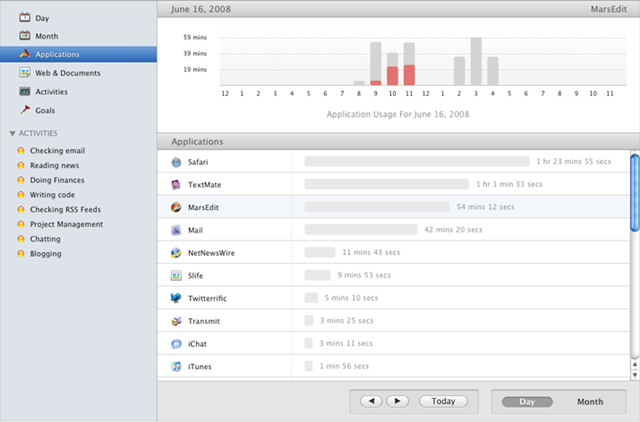
track time spent on computer

Slife automatically starts recording and tracking your computer usage once you install it. It will track usage of applications, web pages, documents, chats, emails, and just about everything else. After a few hours, you’ll start to see which programs you use the most.

After using it for a few days, you can create what are called Activity Groups, like shown in the image above. Create a group called “Checking email” and add Gmail/Outlook or whatever your email client is to the group. Now you will be able to track your time by activity rather than just program.

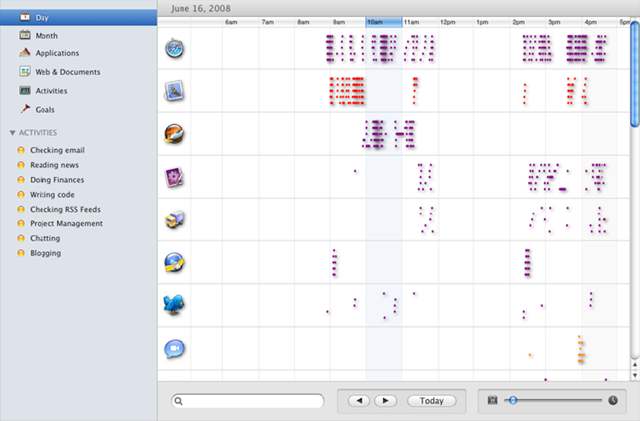
If you click on Day, you can see which programs you use most on your computer for a particular day or for a particular period.

monitor computer usage

Here are some of the key features of Slife that make it really cool:

  • Automatic Tracking – Once you install it and launch the program, it will sit in the system tray and record your activities, no need to configure or setup anything.
  • Visual Interface – The best thing about Slife is it’s use of graphs, charts, and tables that let you visualize your computer usage by time and activities. You can view by day, month, and much more.
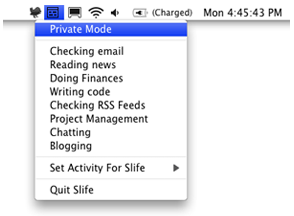
  • Privacy Controls – At any time, you can turn off Slife so that it does not track your computer usage. You can also turn it off for particular programs or activities.

privacy controls

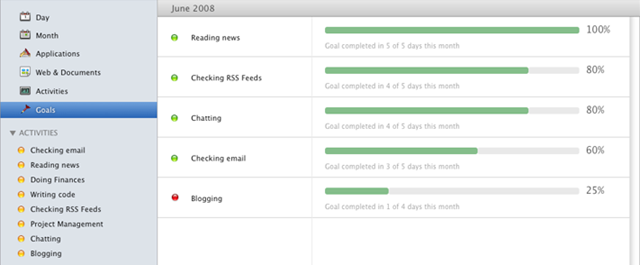
  • Productivity Goals – Once you start tracking your activities and see how much time you are wasting chatting, you could implement a goal that will notify you if you go over the limit you set. For example, you can set a goal to not spend more than 1 hour reading and writing emails. It will also tell you how many days you met your goal, etc.

goals

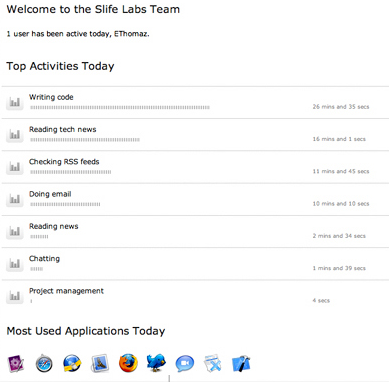
  • Slife Teams – Most people might find this useless for personal purposes, but you can use Slife Teams as a communications and analytics tool for corporate teams. Using Slife, you can keep up to date with what everyone on your team is working on and for how long. Just download Slife onto each person’s computer, create a Team account, and visit the team homepage online.

slife teams

Overall, it’s a great time tracking and analytics tool for anyone who wants to see how they end up spending their time while on the computer. And it’s free! Enjoy!


Posted by Deepak at 11:42 AM | 0 comments  
Labels: ,
Subscribe to: Posts (Atom)
Blog Widget by LinkWithin