Showing posts with label Gmail. Show all posts
Saturday, November 13, 2010

Graph Your Gmail Mailbox Activities With Graph Your Inbox [Extension]

I just came across an interesting Google Chrome extension which is built to chart out your complete Gmailactivity. Graph Your Inbox gives you a detailed insight into your email activity with specific recipients/senders, with friends over at Facebook, subscribed services, Google Talk conversations, and so on. Adding more, you can create graph for your all types of activities which are related/linked with your Gmail email address in a some way or the other. Whether you use your Gmail email address for subscribing services or keeping abreast with Amazon new books, products, eBay bids, etc. All the data from multiple services/websites can be shown in different types of graphs to lets you analyze your Gmail usage activity visually.

Rather than opting-in tool which shows email conversation statistics, data visualization is far better and comprehensive way to analyze general activity. If your Facebook account is linked with Gmail account, you can view your activities w.r.t. conversation with your friends. Product/service subscriptions and Twitter followers (if linked with Gmail) can be charted out. Likewise mails recipients/senders can be compared, previously searched activity for eBay products can also be analyzed in similar fashion.

The application usage is utterly simple, after the extension is installed, launch it from top-right corner of the window (click open envelope-imaged button). Enter keywords in search bar against which data is to be analyzed on graph.

search -1

Multiple keywords, not necessarily having the same background can be entered. Like, you can chart out Facebook activity comparing to conversations with specific contact. Adding more, the Data Points on charts are clickable, you can open yours activity on selected data point in Gmail mailbox window. By default, it shows separate graph for conversations by month and year, activity in current month, and overall activity by years.

2-2 search1

This extension will come useful for those who primarily uses Gmail mail address for almost all sort of purposes. If you’ve been using Gmail for a long time, it’s one worth trying extension for analyzing your previous activities.

Graph Your Inbox Extension for Google Chrome

Posted by Deepak at 12:28 PM | 0 comments  
Labels:
Monday, April 20, 2009

New GMail Labs Features Allows Users To Insert Inline Images Into Gmail


Mountain View, California -- In its relentless quest to improve what is regarded as Google's real social network, which has always been extremely liberal with the volume of attachments it allows Gmail users to add to their emails, the company has just added a couple of new features in Gmail Labs that can be integrated into the regular Gmail experience when activated as: Inserting Images “Allows you to insert images into a message body. You can upload and insert image files in your computer, or insert images by URLs.”

This latest feature empowers users the power to simply insert images into messages instead of having to attach them. It is a pretty cool and simple tool to use. To activate the function in Gmail settings, enable the Inserting Images lab and save. Once activated, you will see a new icon in the toolbar for inserting images into your email.

“Make sure you are in rich formatting mode, or it would not be displayed on the toolbar,” notes Google's Kent Tamura. “Click the little image icon, and you can insert images in two ways: by uploading image files from your computer or providing image URLs.”

Clicking on the little icon opens up a separate window, which lets you choose to browse your PC or add an image URL. However, large images will fill up the entire compose screen of the email.

And what is more, Google has also added a little tool at the bottom of the image that enables you to re-size the image or delete it on-the-fly. You can choose between small, medium, large, or the original size.

Google software engineer Tamura notes, “Keep in mind that Gmail does not display URL-based images in messages by default to protect you from spammers, so if you are sending mail to other Gmail users, they will still have to click “Display images below” or “Always display images from...” to see images you embed.”

There are countless other features apart from the Inserting Images in Gmail Labs, such as: YouTube Previews which “Shows a video preview whenever you receive a YouTube link in an email.”, Gmail tasks and Gmail Offline which “Makes Gmail go where the Internet does not. Access your inbox through your browser and use Gmail's familiar features when you’re offline.”

Posted by Deepak at 11:48 AM | 0 comments  
Labels:
Monday, February 2, 2009

Access Gmail Offline: New labs feature


Gmail Labs has released a new feature called “Offline Gmail” as announced on official gmail blog. Offline gmail uses Google Gears to download all your emails to system cache when you are connected to network. Offline Gmail keeps syncing the local cache with server when connected. When you are offline, turn browser into “Offline Mode” by going to “File–>Work Offline” & visit gmail.com as usual. All the emails will be accessible as usual.

To enable this feature goto “Settings–>Labs” & enable “Offline Gmail”. You might have also required to install Google Gears to get this functioning. This feature is not yet released to all accounts yet, but will be releasing soon. Keep looking at your Setings page.


Posted by Deepak at 8:21 AM | 0 comments  
Labels:
Thursday, November 13, 2008

5 Little Known Gmail Tips


Gmail is by far the most popular free email service by Google. Now powerusers can check out these 5 little known GMail tips and learn some more ways to get a better GMAIL experience.

CUSTOM FROM

Redirecting mails from another email is a pretty common service that most email service providers provide. Gmail takes it a step further. Not only can you redirect your mails from Gmail to another address but also send mails from your Gmail account as if they were appearing from another account!

No, we are not spoofing. It’s a legal way that Gmail provides.

As an example, take two email ids like google@gmail.com andyahoo@yahoo.com. Our task is to configure Gmail account such that mails could be sent with From: as either of the two ids.

  1. Go to google@gmail.com > Settings > Accounts tab.
  2. Under Send mail as: option, click on Add another email address.
  3. Follow the instructions on the screen.
  4. An email will be sent to yahoo@yahoo.com with a pass code. Enter that pass code in the specified location.
  5. Done. As shown in the image alongside, you can use eithergoogle@gmail.com or yahoo@yahoo.com as the From address to send mails, and can configure either as the default.

I really like this and has made my life much easier

GMAIL SIGNATURE IN REPLY-TO EXACTLY WHERE YOU WANT IT

This is something new from the Gmail’s super creative team. With this option enabled, you need not cut-paste your signature from the bottom to just after your message. As soon as you click on reply, your signature will automatically appear on the very top. This is especially useful in long mail exchanges. Here is how you can configure Gmail signatures. (link)

SHOO AWAY SPAMMERS

Gmail considers r.o.w@gmail.com the same as row@gmail.com. This can be an excellent way to find out your spam mail source. Bloggers submit their email ids to many places. With each submission there is a potential for email abuse. The way to get around this is: Instead of submitting your mail id like row@gmail.com, submit it as r.ow@gmail.com to one, asro.w@gmail.com to another, and so on. Set up filters in Gmail corresponding to each of the mail ids submitted by you. Now when you receive spam, you can identify its source based on the unique filter that has been set up for it.

DAMN, I FORGOT TO ATTACH THAT DOC

No more fret about it. With this option enabled, Gmail will detect that you wanted to attach a doc but forgot to and it will prompt you to do so. Go to your Gmail account > labs and enable this feature as shown.
It seems that this feature scans for words like “attachment”, “find attached” etc. to detect missing attachment. Simple but a lovely idea.

SECURE YOUR GMAIL ACCOUNT

Worried that someone else might be reading your emails from the cyber cafe you went to and forgot to log out from? No more. Gmail now providesSign out all other sessions facility. Scroll down to the bottom of Gmail page after login. Click on Details. You will get this pop up. You know what to do with this button now. Rest in peace.


For more such great enhancements, they are available in the Labs Tabs in teh GMail Setting. Share your comments.


Source : Quick Online Tips
Posted by Deepak at 6:39 PM | 0 comments  
Labels:
Tuesday, October 14, 2008

13 Gmail Extensions for Firefox 3


Gmail turned online email on its ear when it popped up a few years back. Naturally, there are more than just a few Gmail extensions for Firefox for an improved user experience. Want a more dynamic signature? How about the ability to open multiple Gmail accounts at once in the same browser? What about the chance to write your emails from right to left? All of these and more are available via these 13 Gmail extensions.

As with any list of Firefox tools, please do not install all of these at once unless you’d like to slow down your browser.

Better Gmail 2 - A Firefox extension that combines some of the most popular Greasmonkey scripts for Gmail into an easy to install extension. You can control which ones are operating by use of a simple checkbox interface.

Blank Canvas - Lets you create multiple HTML signatures that are inserted where you choose in your emails.

Email This! Bookmarklet Extension - Will send your chosen recipient the link, title, & highlighted text of the page you are currently viewing. Will work with multiple emails such as Yahoo and stand-alone clients, but is focused on Gmail (as if you couldn’t tell from their logo).

Gmail Checker - Will allow you to check for new emails on traditional Gmail accounts and Google Apps accounts.

Gmail Manager - Beyond just giving you a visual and audio notification that you have new email, it will also allow you to log in to multiple Gmail accounts at once from the same browser. For more solutions to the multiple login problem, see Stan Schroeder’s “5 Ways To Log Into Several Gmail Accounts at the Same Time”.

Gmail Notifier - Allows you to keep an eye on multiple Gmail accounts as well as hosted domain accounts.

Gmail RTL - Adds the ability to write from right to left in Gmail, which is only offered in the Hebrew and Arabic versions of the service.

Gmail S/MIME - Allows you to send and receive S/MIME encrypted messages via your Gmail system.

Gspace - Have oodles of unused space in your disk quota on your Gmail account? Why not turn it into a virtual storage facility for files?

GTDInbox - GTDInbox turns your Gmail inbox into an organizational tool, allowing you easy integration between your mail and projects you are working on.

WebMail Notifier - While WebMail Notifier is not exclusively a Gmail extension, it is still an easy way to receive notifications of when you’ve received new emails.

WiseStamp - Allows you to create a much more dynamic signature for your Gmail accounts that will show off your social networking links, IM names and more. Can also set up business and personal signatures if you choose. See our previous review of WiseStamp here.

Xoopit - Xoopit will modify your Gmail search so that you can search your attachments, pictures and videos as well as the emails themselves. You can also add comments to pictures and pass them on to your blog or Facebook.


Source : mashable.com
Posted by Deepak at 8:47 AM | 0 comments  
Labels:

13 Gmail Extensions for Firefox 3


Gmail turned online email on its ear when it popped up a few years back. Naturally, there are more than just a few Gmail extensions for Firefox for an improved user experience. Want a more dynamic signature? How about the ability to open multiple Gmail accounts at once in the same browser? What about the chance to write your emails from right to left? All of these and more are available via these 13 Gmail extensions.

As with any list of Firefox tools, please do not install all of these at once unless you’d like to slow down your browser.

Better Gmail 2 - A Firefox extension that combines some of the most popular Greasmonkey scripts for Gmail into an easy to install extension. You can control which ones are operating by use of a simple checkbox interface.

Blank Canvas - Lets you create multiple HTML signatures that are inserted where you choose in your emails.

Email This! Bookmarklet Extension - Will send your chosen recipient the link, title, & highlighted text of the page you are currently viewing. Will work with multiple emails such as Yahoo and stand-alone clients, but is focused on Gmail (as if you couldn’t tell from their logo).

Gmail Checker - Will allow you to check for new emails on traditional Gmail accounts and Google Apps accounts.

Gmail Manager - Beyond just giving you a visual and audio notification that you have new email, it will also allow you to log in to multiple Gmail accounts at once from the same browser. For more solutions to the multiple login problem, see Stan Schroeder’s “5 Ways To Log Into Several Gmail Accounts at the Same Time”.

Gmail Notifier - Allows you to keep an eye on multiple Gmail accounts as well as hosted domain accounts.

Gmail RTL - Adds the ability to write from right to left in Gmail, which is only offered in the Hebrew and Arabic versions of the service.

Gmail S/MIME - Allows you to send and receive S/MIME encrypted messages via your Gmail system.

Gspace - Have oodles of unused space in your disk quota on your Gmail account? Why not turn it into a virtual storage facility for files?

GTDInbox - GTDInbox turns your Gmail inbox into an organizational tool, allowing you easy integration between your mail and projects you are working on.

WebMail Notifier - While WebMail Notifier is not exclusively a Gmail extension, it is still an easy way to receive notifications of when you’ve received new emails.

WiseStamp - Allows you to create a much more dynamic signature for your Gmail accounts that will show off your social networking links, IM names and more. Can also set up business and personal signatures if you choose. See our previous review of WiseStamp here.

Xoopit - Xoopit will modify your Gmail search so that you can search your attachments, pictures and videos as well as the emails themselves. You can also add comments to pictures and pass them on to your blog or Facebook.


Source : mashable.com
Posted by Deepak at 8:47 AM | 0 comments  
Labels:
Saturday, May 10, 2008

A Useful Gmail Feature I Bet You Didn't Know About


There are emails and emails and then their is GMAIL. I thought all their was to an email is a unique id and the usual read, compose, send cycle. Then I came across this nice little GMail tip tucked somewhere in a Google How to. And as all tips go, this one can be put to some nice uses. If you are reading this tip for the first time, its all thanks to the Google geeks, say the thanks not to me. Just as I "discovered" it and found some uses for it, I hope you do too.

So here's the little tip for all you GMail users and the GMail newbie.

Let's say your address is SantaClaus@gmail.com (Believe me, Uncle Santa would be the happiest to get this tip. It will take care of all his mails on Christmas Eve)

Any email sent to the permutations of the id will be forwarded to your email. What kind of permutations, you might ask? Like these, for example -

Santa.Claus@gmail.com

S.antaClaus@gmail.com

Sant.aClaus@gmail.com

...and so on with the dots.

You can play around with the placement of the dots. The fun doesn't end here. You can place multiple dots too, like - S.a.n.t.a.C.l.a.u.s@gmail.com, though anybody with such an id would be quite "dotty" !

Their is another interesting feature up GMail's sleeve and it is called 'Plus Addressing'. The way it works is simplicity itself. You can tweak your main GMail account for some special purposes. Just follow me...

First go to the Settings option in your Email. Navigate to Filters  Create new filter.

Here in the "To" field enter your email ID + the name you would like to create. For e.g.; if your GMail ID is SantaClaus@gmail.com, you can create a filter - SantaClaus+gifts@gmail.com for all your mails regarding gifts.

Next you need to specify where you would like the mails to this ID sent to. You can select any of the five options...

Now, as Santa you can use the SantaClaus+gifts@gmail.com and all your mails using this id will be filtered according to your selection.

This is quite handy for organizing your Inbox. For example, their may be some forum mails or newsletter which you just want to archive for a later read. You can use a specially created id just like this for sorting them. Another use that I find really useful is to use this feature to create a temporary id and delete it when I no longer need it. I am sure you will be able to find your own uses for this nifty GMail trick.

As for Santa, does he have a GMail id?


Posted by Deepak at 12:05 PM | 0 comments  
Labels: ,
Friday, February 29, 2008

25 Incredible Skins, Resources & Tools for the Gmail Power User

Gmail is one of those rare things unanimously loved by everyday web users and tech-heads alike. The possibilities are endless. It can be anything from a simple email client to your central nervous system on the web. How far you take it is up to you.

Each day seems to produce a new hack, tool or tip for better Gmail use. In this post, I want to highlight only the very best, hand-picked from hundreds of resources. This is not another resource list you’ll bookmark and never look at again. These tips, monster resources and tools will change the way you use Gmail.


Best Gmail skins

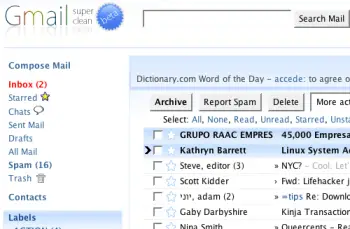
1. Super Clean skin — probably the most popular Gmail skin, Super Clean replaces the standard interface with a minimalist white and sky-blue version. Perfect for the budding Zen-master.
gmailsuperclean.png

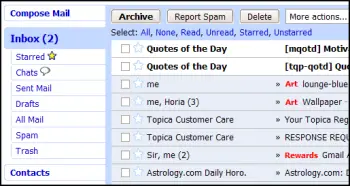
2. Air skin — makes subtle changes to the visual interface, adding clean lines, a cloudy color combo and changes the primary font. The perfect solution for users looking for a fresh look without any radical changes.
gmailair.png

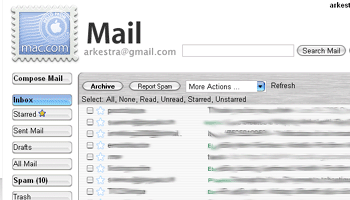
3. Mac skin — a Mac-inspired Gmail skin to match the Mac you’re checking your mail on! Adds a Mac-style menu and color-scheme to your Gmail account.
gmailmac1.gif

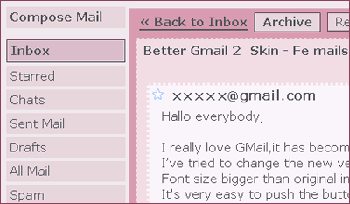
4. Fe Mail skin — a well-crafted and very pink Gmail skin.
femails.gif

5. Dark Gmail skin — almost the complete opposite to the last link, this skin is one for the dark and brooding Gmail user.

darkskin.png

6. Silverstar skin — a popular minimalist gray theme.

simplicity.gif

7. Brushed skin — a gray and maroon theme with nifty gradients thrown into the mix.

brushed.png

Best Gmail resources

8. The Gmail Shortcuts Cheat Sheet — a comprehensive printable cheat sheet of useful shortcuts for Gmail. Print it and stick it to your desk: these shortcuts are worth memorizing. Did you know pressing ‘Tab’ and ‘Enter’ will send the email you’ve composed?

9. Gmail Craze: 40+ Tools and Hacks for Gmail — a frequently updated post from MakeUseOf featuring essential Firefox extensions, Greasemonkey Scripts, Desktop Apps, Web Tools, tips and hacks.

10. 55 Gmail tips — this website is dedicated to providing detailed Gmail tips. It covers everything from excluding chat from search results to importing Hotmail contacts.

11. Hack Attack: Become a Gmail Master — this fantastic guide from Lifehacker introduces Gmail’s most powerful capabilities in a way that’s easy to follow. It will help take anyone only familiar with Gmail’s basic functions to the next level.

12. Use Gmail as Your Universal Email Account — got too many email addresses to keep track of? Forward them all to Gmail and deal with your incoming mail from one central location.

13. Ultimate Gmail Collection: Over 80 Tools and Tips — a monster list of extensions, scripts, apps, notifiers, how-tos and shortcuts for the serious Gmail user.

14. Turn Gmail Into Your Personal Nerve Center — influential technology blogger Steve Rubel shares his essential Gmail life hacks, including:

  • How to turn Gmail into a massive personal database
  • How to get real-time news updates in Gmail
  • How to automatically store your bookmarks in Gmail
  • How to manage Calendar and To-Dos in Gmail
  • How to blog from Gmail

15. 1 Awesome Gmail Tip You Didn’t Know About. Seriously. — this easy tutorial explains how you can customize your Gmail address to serve different purposes.

16. Gmail Toolbox: 60+ Tools for Gmail — Mashable.com works its magic with a huge compendium of Gmail tools. It includes all the extensions you know and love in addition to some (previously) undiscovered gems.

17. Access Gmail When It’s Blocked at Work or School — Engtech provides five strategies you can use to check your Gmail anywhere, even when the I.T. department doesn’t want you to.

18. Mark Spam Messages as Read — this simple filters hack allows you to prevent your unread spam count showing in the main display. Best of all, it will still alert you to items that have been incorrectly marked as spam.

19. Gmail Tips and Tricks: Monster Roundup — Lifehacker’s big roundup of its favorite Gmail downloads, hacks and articles.

Best Gmail tools

20. Gmail Drive — this tool puts Gmail’s extensive storage capacity to use, adding a new drive to your computer which can be accessed via Windows Explorer. You can create folders and drag and drop files within the drive. If you’ve got unused space in your Gmail account, why not add some more space to your hard drive?

21. GTD Inbox — the email solution for productivity nuts, GTD Inbox is a Firefox extension designed to merge the “Getting Things Done” productivity method with Gmail. It transforms Gmail into a productivity hub you can use to set and manage tasks or to-dos. The interface is very subtle and won’t interrupt the look and feel of Gmail as you know it.

22. Better Gmail 2 — this simple and elegant Firefox extension, authored by Gina Trapani, makes several improvements to Gmail’s core functionality, allowing you to hide the ever-annoying Spam count, compose Mailto links in Gmail and view your storage quota as a useful graph. If you’re still using the old version of Gmail, you’ll need to download the original Better Gmail extension.

23. Gmail Music — this nifty little web-based GUI app allows you to store MP3 files in your Gmail account and play them on any computer.

24. Dragdropupload — a Firefox extension that does away with the pesky ‘Browse’ interface. It enables drag and drop email attachments to make the process quick and painless.

25. Gmail Skins — a Firefox extension to customize the color of your Gmail inbox.

Suggest your favorite skins, resources and tools in the comments section!


Posted by Deepak at 8:13 AM | 0 comments  
Labels:

Google Email Uploader

The Google Email Uploader is a desktop utility for Microsoft Windows that uploads email from other desktop email programs (like Microsoft Outlook) into your Google Apps mailbox. The Email Uploader preserves information such as sent dates and sender/recipient data, as well as the folder structure used by the other email program. The Google Email Uploader requires a Google Apps Premier, Education, or Partner Edition account.

http://code.google.com/p/google-email-uploader/

Posted by Deepak at 8:08 AM | 0 comments  
Labels:
Subscribe to: Posts (Atom)
Blog Widget by LinkWithin